Guide · GitHub → Microsoft Teams · Verified November 1, 2026
GitHub to Microsoft Teams webhook guide
Short answer: One GitHub endpoint verifies each delivery, a destination filter keeps the events in this guide, and every match is delivered to Microsoft Teams with its own retry schedule and delivery log.
A team channel is the shared inbox between engineering and support. This pairing sends each new issue as a card with the title in bold and the link underneath, so the channel can triage from Teams while the source of truth stays on GitHub.
At a glance
1. Configure the GitHub webhook
- In the repository, open Settings → Webhooks → Add webhook and paste the endpoint's ingestion URL.
- Set Content type to application/json and paste the same signing secret the endpoint uses.
- Choose “Let me select individual events” and enable Issues, Issue comments, Pull requests, Pushes, Releases, and Workflow runs as needed.
- Open or label an issue to send the first delivery, then check the delivery log.
HMAC-SHA256 over the raw request body, compared in constant time. No timestamp header, so there is no clock-window check.
2. Filter to the events that matter
Filters run per destination before rendering, so a non-matching event is stored with no delivery and no agent call. The rules below are the difference between a useful pairing and a noisy one.
Filter: new issues only
{
  "allow": [
    { "field": "event.type", "op": "equals", "value": "issues.opened" }
  ],
  "senders": {
    "allow": { "associations": ["OWNER", "MEMBER", "COLLABORATOR"] }
  },
  "ignoreBots": true
}
3. Configure the Microsoft Teams destination
A Hooks Microsoft Teams destination POSTs a MessageCard to an incoming webhook URL from an Office 365 Connector, Power Automate, or Workflows; the URL is a project secret. Connectors answer 200 with the body 1, and Workflows answer 202.
Destination: Microsoft Teams incoming webhook
{
  "webhookUrl": "{{secret.TEAMS_WEBHOOK_URL}}",
  "title": "New issue: {{event.subject.title}}",
  "text": "[{{event.repo}}]({{event.subject.url}})",
  "themeColor": "0076D7"
}
Secrets enter configs only as {{secret.NAME}} references; literal credentials are rejected. Full Microsoft Teams target guide
4. Verify the delivery and its retries
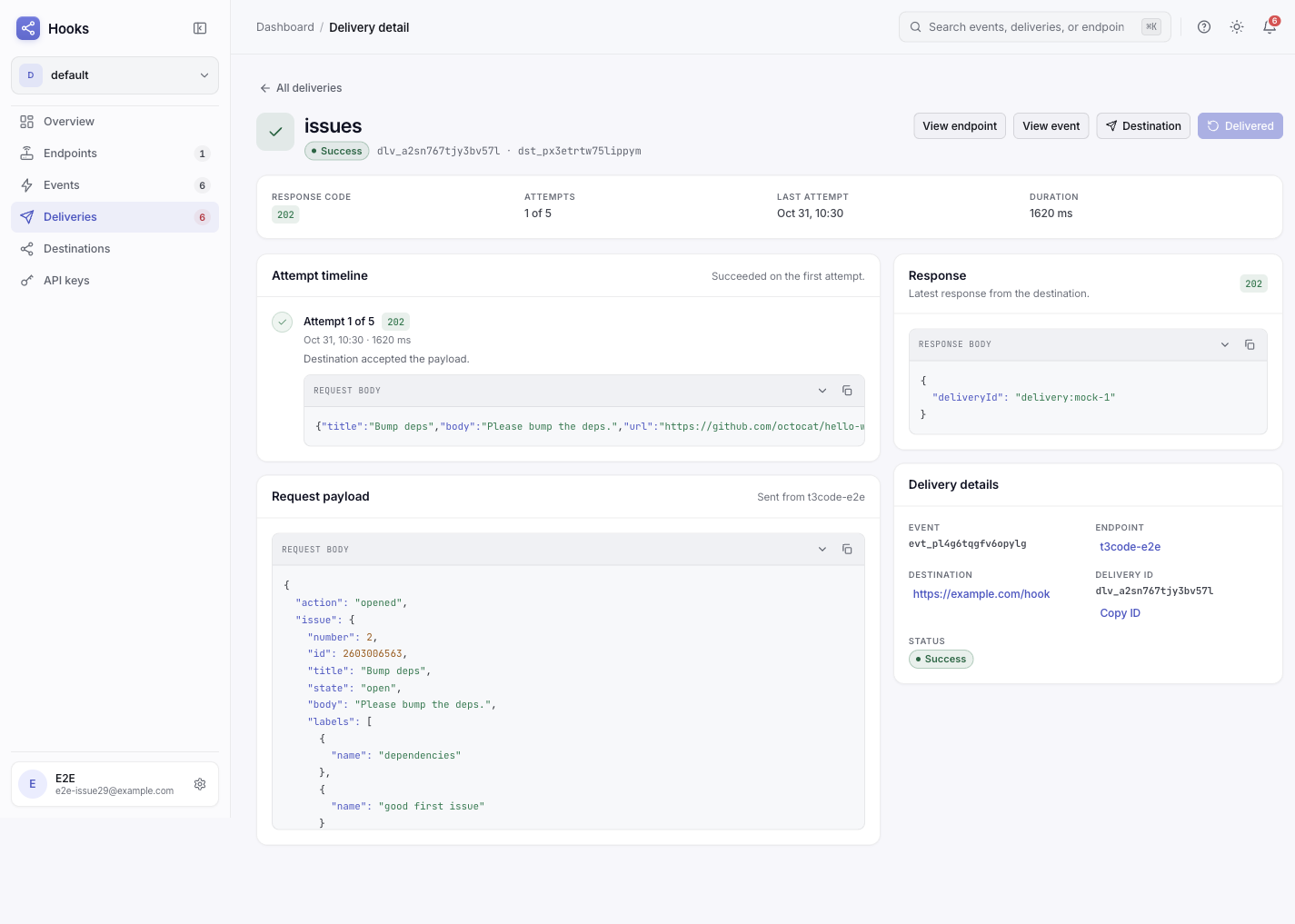
Send one real event from the source, then open Deliveries. A 2xx from the target means accepted, not finished. 408, 425, 429 and 5xx retry with backoff honoring Retry-After; other 4xx fail permanently with a named code. The rendered request is stored per attempt, so a bad field path is visible without re-sending.
The pitfall this pairing hits
Teams renders a markdown subset, not HTML. The card text accepts a small markdown subset — bold, links, lists — and silently ignores HTML tags, so a template copied from an email alert shows the tags as text. Keep the card to a bold title and one markdown link.
Frequently asked questions
Do I need one endpoint per source or one per destination?
One endpoint per source. Each destination under that endpoint carries its own filter, template, retry schedule, and delivery log, so the same event can feed several targets without duplicate ingress URLs.
What happens while the target is down?
Retryable failures back off and retry within the destination's window; permanent 4xx failures stop immediately. Either way, the original event stays stored, so after fixing the target you replay the event instead of asking the source to send it again.
Teams renders a markdown subset, not HTML
The card text accepts a small markdown subset — bold, links, lists — and silently ignores HTML tags, so a template copied from an email alert shows the tags as text. Keep the card to a bold title and one markdown link.